Cover Image
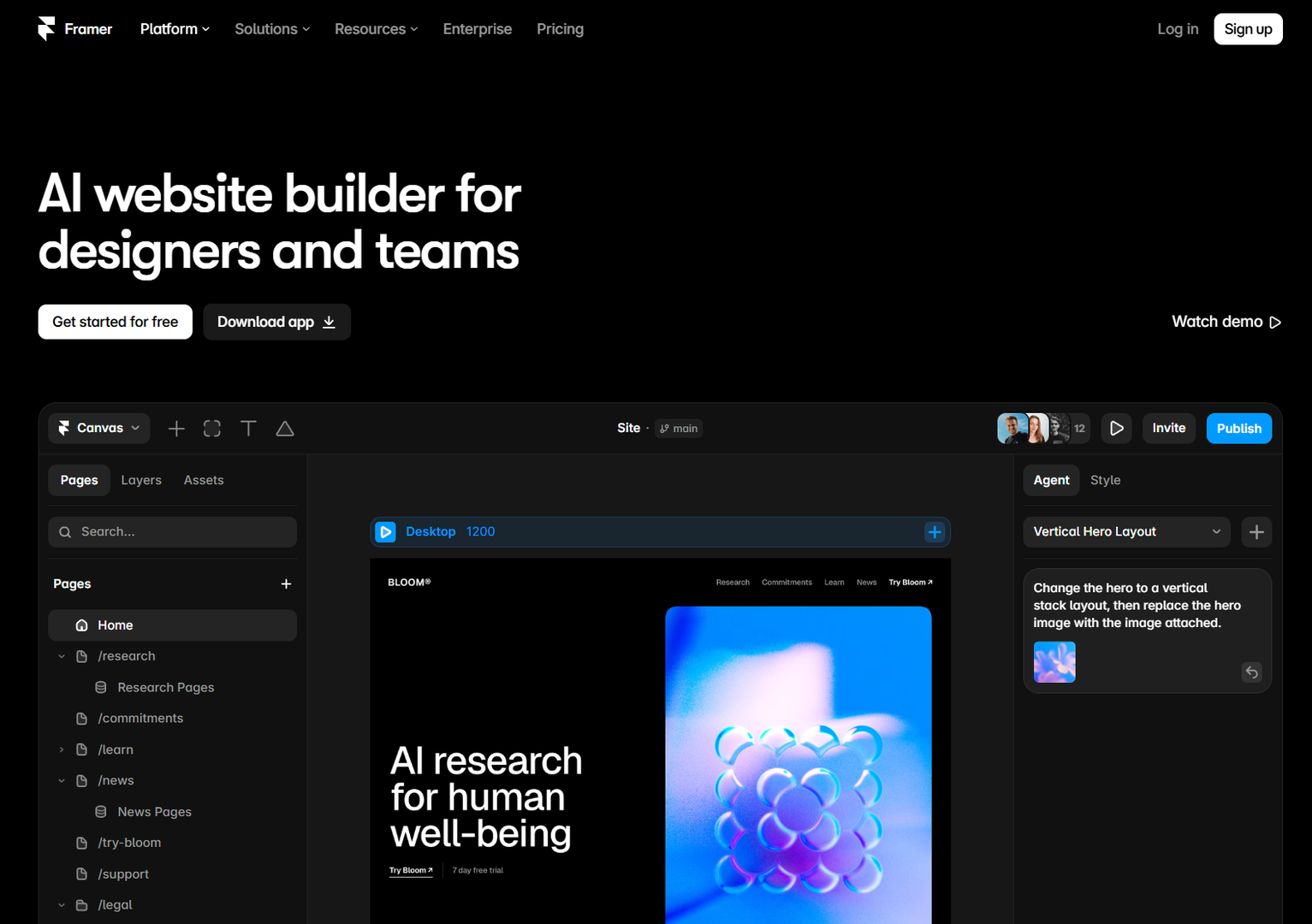
A generated screen can look convincing before anyone checks its behavior. The useful question is what you need to do with it next: explore a layout, test an interaction, develop an application, or publish a website. That destination helps narrow the tools worth trying.
This guide compares Figma Design and Figma Make, v0, Framer, Uizard, and Google Stitch by their documented workflows. The recommendations are editorial judgments based on official product pages checked on September 8, 2026. They are not results from a hands-on benchmark, and they do not establish which tool is fastest or produces the best designs. Features and usage limits can change.
Quick picks: Try Figma Design for editable canvas work, Figma Make for functional prototypes within the Figma workflow, v0 for code that will enter a development repository, Framer for websites you plan to publish from its canvas, and Uizard or Stitch for exploring interface ideas. Several of these tools cover more than one destination.
How to Choose an AI Prototyping Tool
Start with the next task. A layout review may need only editable screens. Testing a checkout interaction may need realistic navigation, validation, and error states. Engineering work may require source code that fits an existing application. Choose the level of fidelity that lets you answer the question in front of you.
Name the owner. Decide who will maintain the output and where it will live. A team working in a repository has different integration needs from a team publishing through a visual website builder.
Check the route out. Before committing, try a small example with your components, content, and constraints. Inspect what you can edit, share, publish, or move into your existing workflow. A plausible demo does not establish that the output is ready for production.
Figma Design and Figma Make: Two Different Outputs
Figma AI includes more than canvas generation. Figma Design’s agent works with editable designs; Figma Make supports functional prototypes and web apps. Treating the whole suite as a layers-only tool would miss that distinction.
For canvas work, Figma’s Design agent description explains how to guide generation with a selected library and references to specific components, tokens, and variables. That gives the agent useful context. You should still inspect whether the result uses the intended components and values.
Suggested workflow: Choose a screen and a library, describe the task, and reference the components or variables that matter. Compare a few directions, refine one on the canvas, and check its system alignment before sharing. Here, “directions” means alternative designs, not a promise that the agent creates reusable component variants.
When you need working behavior, consider Figma Make. Figma’s July 2025 announcement describes interactive prototypes, library styling context, backend integration, and examples of working code shared with engineers. Functional output still needs review before it becomes application code.
Watch for: confusing Figma Design output with Make output, assuming perfect token adherence, or budgeting as though generation is unlimited. Figma AI actions use credits; allowances depend on the plan and seat.
v0: A Starting Point for Repository-Based Work
Vercel’s v0 documentation describes a stack that includes Next.js, React, TypeScript, Tailwind CSS, and shadcn/ui. Its scope includes full web applications as well as UI components. That makes it a candidate when the prototype will continue as code.
Suggested workflow: Have a designer and developer agree on the screen structure, behavior, and implementation constraints. Provide project context, generate a small slice, and review semantic HTML, component structure, keyboard behavior, and data handling before expanding it.
The GitHub integration supports repository-based iteration and pull requests. Use that review path to inspect the generated changes. A successful preview does not prove the application fits your architecture or meets accessibility and security requirements.
Watch for: treating generated code as finished implementation. Check dependencies, repeated patterns, responsive behavior, and any assumptions about APIs or authentication. The amount of cleanup depends on the task and existing project.
Framer: Websites You Edit and Publish in One Project
Framer AI supports generating editable pages and sections, refining them on the canvas, working with CMS collections, and publishing a website. I would shortlist it for a campaign page, portfolio, or other website whose ongoing owner wants a visual editing workflow.
Suggested workflow: Brief the audience, primary action, content, and page structure. Generate a starting point, refine typography and spacing, configure repeatable content in the CMS, then check links, forms, and target screen sizes before publishing.
The same project can serve as the draft and the published site. Framer also describes responsive layout controls and AI-generated custom code components connected to a design system. Marketing websites are a useful recommendation here, not a hard limit on what Framer can do.
Watch for: assuming a generated layout needs no breakpoint adjustments or that CMS capacity is unlimited. Check the relevant plan and test the interactions your site needs.
Uizard: Explore Interfaces from Text and Visual References
Uizard’s design assistant describes generating editable multi-screen UI from prompts and converting sketches and screenshots into editable designs. Those capabilities make it worth considering when you want something concrete to discuss early in a project.
Suggested workflow: Bring a sketch or screenshot, generate an editable direction, then evaluate its navigation, content, and hierarchy. Keep the useful work and decide how it will enter the next stage of your process.
Watch for: confusing editable mockups with application implementation. Check your required sharing and handoff options before investing in a larger prototype. There is no evidence-based rule that Uizard work becomes unusable after one morning or one week; set a timebox that suits the decision you need to make.
Google Stitch: UI Exploration and Interactive Flows
Google’s Stitch product announcement describes a canvas for turning natural-language instructions into high-fidelity UI, using images, text, or code as context. It also describes interactive flows, design-rule exchange through DESIGN.md, and connections to development tools. Stitch should therefore not be described as a static-mockup-only tool.
Suggested workflow: Describe the user’s task, add relevant references, and explore a few screen directions. Connect a small flow and check whether its behavior matches your intended journey. Evaluate the available export or integration route before deciding how the result will enter development.
Watch for: assuming an interactive preview proves every application behavior is implemented. Check what is simulated, what context the next tool receives, and what engineering work remains.
A Worked Example: One Brief, Different Destinations
Imagine a scheduling feature that needs both a marketing page and an onboarding prototype. These are hypothetical choices, not a reported customer case study.
For a marketing page maintained by a team already publishing in Framer, I would start there. For onboarding code that developers will integrate into a React application, I would try v0 against the existing project. If the team first needs to explore the screen structure, Figma Design, Uizard, or Stitch could be useful. If it needs to demonstrate behavior within its Figma workflow, Figma Make belongs on the shortlist.
The decision should follow ownership, required behavior, and integration needs. It does not need to imply that one tool is universally better than the others.
A Prompt and Token Example You Can Adapt
This example uses a custom token structure, not a universal import format. For a v0-style code workflow, attach the file or include its contents and explicitly ask for a mapping to CSS custom properties and the project’s Tailwind setup. Other tools may need their own library configuration or design-rule format.
Build a pricing section with three tiers, a monthly/yearly toggle,
and one primary CTA per tier.

Use the attached tokens.json as design guidance. Define matching CSS custom
properties, then reference them in Tailwind utilities or the project theme.
Do not introduce additional colors or spacing values without explaining why.

Structure: a <section> with one <h2>, and a <ul> of pricing cards.
Make the toggle keyboard-accessible and expose its selected state.
Use plain copy. Include loading and error states if data is fetched.

After generating, list any deviations from the tokens and any interactions
that are mocked rather than implemented. Include a brief review checklist.
The accompanying tokens.json is valid JSON, with explicit units for dimensions:
{
  "color": {
    "surface": "#F7F5F0",
    "ink": "#1B1A17",
    "accent": "#2B4EFF"
  },
  "radius": {
    "card": "12px",
    "control": "8px"
  },
  "spacing": {
    "small": "8px",
    "medium": "16px",
    "large": "24px"
  },
  "fontSize": {
    "body": "16px",
    "label": "14px",
    "subheading": "20px",
    "heading": "32px"
  }
}
A prompt communicates constraints; it does not enforce them. Inspect the generated values and component usage, and keep the prompt with the design or code review so someone else can understand the intent.
Workflow Comparison
| Tool or feature | Documented output or workflow | When I would shortlist it | What to check |
|---|---|---|---|
| Figma Design agent | Editable canvas designs | Design-team iteration using library context | Component and variable adherence; AI credits |
| Figma Make | Functional prototypes and web apps | Exploring behavior within a Figma workflow | Implemented versus simulated behavior; code review |
| v0 | Application code and repository integration | A prototype that will continue in development | Architecture, dependencies, accessibility, data handling |
| Framer | Editable and publishable websites, CMS, custom components | A site maintained through a visual editor | Breakpoints, interactions, plan limits |
| Uizard | Editable UI from prompts, sketches, and screenshots | Making an interface idea concrete for discussion | Sharing and handoff fit |
| Google Stitch | UI designs, interactive flows, and development connections | Exploring screens and journeys with design context | Export context and remaining implementation work |
Start with one representative task. Review the output with the people who will use and maintain it: can they understand the hierarchy, operate the controls, and see the necessary loading, empty, and error states? Keep the tool that fits that workflow, and record the adjustments it required.
Linh Nguyen
Graphic Designer
Passionate Graphic Designer | Specializing in Illustration Design | Bringing Captivating Visuals to Life