Cover Image

Start with the reader’s task
A table that looks fine on a laptop can become unreadable on a phone. The columns squeeze together, the numbers wrap onto two lines, and the header scrolls out of view as the reader moves down the rows. The reader has to hold the column names in their head while they scan, and on a narrow screen that gets hard fast.
This guide covers how to keep the data readable on a phone without breaking the table for assistive technology. It walks through the choices (horizontal scroll, stacked rows, and a summary with detail), how to pick one for the task, and how to test with the longest real values. The rules come from the W3C's Web Content Accessibility Guidelines (WCAG) 2.2, the W3C Tables Tutorial, MDN's table reference, and NN/g's guidance on tables for mobile.
Key Takeaways
Preserve native table headers and relationships when comparisons depend on them. Record views can use labelled groups when those relationships remain clear.
Choose by task: scroll for comparisons, stack for complete records, or show a summary with accessible detail controls.
Test at 320 CSS pixels wide and with the longest real values in your data, not with the short sample rows.
Choose by task
The right pattern depends on what the reader is doing. Compare values across rows, and a horizontal scroll with a sticky first column keeps the comparison possible. Look up one record, and stacking makes each record easy to read. Scan for a few key numbers, and a summary with detail keeps the screen clear. Write the task down before you choose the pattern, because the wrong pattern for the task makes the table harder to use even when it looks tidy.
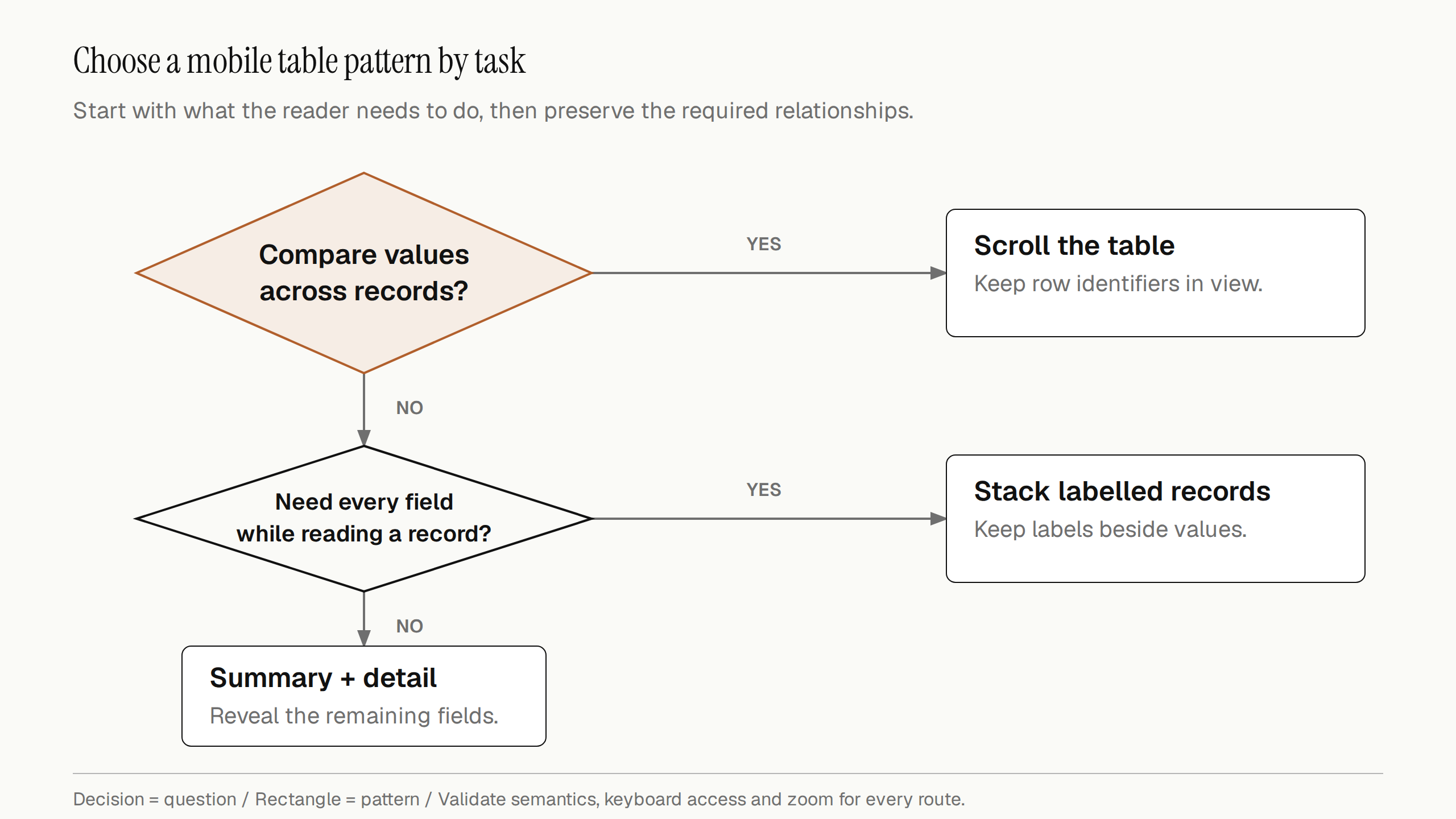
Choose the pattern by the task, then verify its semantics and controls. Open the diagram to view it at full size.
Decide which columns matter first
Before you pick a pattern, decide which columns the reader needs first. A pricing table might need the plan name and the price, with the features further along. A stock table might need the item and quantity, with the supplier details hidden behind a tap. Put the most important columns at the start of the row, and give the rest a lower priority.
NN/g's guidance on mobile tables suggests asking what the reader needs from the table on a small screen, and whether limiting the number of columns is an option. The article notes that for complex or wordy entries, such as those in comparison tables, only two columns may fit legibly on a narrow screen. For a number-heavy table, narrower columns can work, but only if the reader understands the shorthand used in the headings (NN/g, Mobile Tables). Read the full article before you apply its specific examples to your data.
If the columns cannot be cut, the next choices are a scroll, a stack, or a summary.
Preserve semantics and contain table overflow
Use native table markup when the content relies on row and column relationships. The W3C Tables Tutorial says accessible tables need HTML that marks header cells and data cells and defines the relationship between them. Assistive technology uses that relationship to give the reader context (W3C WAI, Tables Tutorial).
WCAG 1.3.1, Info and Relationships, covers the same point from the criteria side. Information that a sighted user gets from layout, such as which values belong to which column, must be programmatically determinable or available in text (W3C WAI, Understanding SC 1.3.1). Converting a comparison table into generic blocks can lose those relationships. Preserve the table structure when they matter. A record-oriented alternative can use labelled groups, such as a definition list, if it preserves all information and the relationships needed for that task. Test any CSS transformation of table display with supported browsers and screen readers; keeping the element names alone does not prove the result is accessible.
MDN's reference for the table element lists the parts of the structure, including the caption, header rows, and cells. The reference notes that a caption that clearly and concisely describes the table's purpose helps readers decide whether to read the rest of the table or skip it (MDN, table element). The same caption helps a reader on a phone decide whether the table is worth scrolling through.
Why a table breaks on a phone
A wide data table can require a two-dimensional layout to preserve comparisons. WCAG 2.2 Reflow requires vertically scrolling content to work at a width equivalent to 320 CSS pixels without loss of information or functionality or two-dimensional scrolling. It explicitly excepts content requiring two-dimensional layout, including data tables, but not individual cells.
The exception belongs to the table, not the whole page. Keep ordinary paragraphs and controls within the viewport, and let text within cells reflow. A horizontally scrolling table container can preserve the layout without making the surrounding page scroll sideways. Stacked records are another option when cross-row comparison is not the main task.
Long values can still undermine either pattern. Check names, identifiers, numbers, and units before choosing column widths. Do not split a number in a way that makes its value ambiguous.
Implement the pattern that fits the task
Scroll with a sticky first column when comparison matters
A horizontal scroll works well when the reader wants to compare values across columns, such as product specs side by side. Put the table inside a container that scrolls sideways, and keep the first column visible so the reader always knows which row they are on.
Give the reader a visible sign that there is more to see. A scroll that starts at the left edge with no cue can hide the rest of the table. A fade at the edge, or a short line of text above the table, helps. Keep the header row visible when the table is long enough to scroll vertically as well.
Check the scroll container with the keyboard. A reader who cannot use a mouse must be able to reach the scrolling area and move through it. Some browsers make scroll containers focusable automatically, but support varies. Where needed, add tabindex="0" to the scrolling region, give it an appropriate accessible name, and test arrow-key scrolling. Avoid unnecessary extra tab stops when the existing interaction already provides access.
At a 1280 CSS pixel starting viewport, 400% browser zoom corresponds to a 320 CSS pixel viewport. Check the table’s layout exception separately from the surrounding content. Keyboard access to the scroll area and understandable row and column labels still matter (W3C WAI, Understanding SC 1.4.10).
Keep the header row in view
A sticky header can keep column names visible while readers scroll a long table. In a stacked record view, repeat the relevant label beside each value instead; a desktop-style header is not always useful there.
MDN’s position reference explains that sticky positioning relates to the nearest ancestor with a scrolling mechanism and is constrained by its containing block. Set an appropriate inset, such as top: 0, and inspect ancestor overflow settings. A fixed-height container is one design option, not a requirement for every sticky header.
Choose whether the header should stick within a vertically scrolling container or during page scrolling, then test that arrangement. Use an opaque background and suitable stacking order for overlapping headers and row labels. Check that sticky content does not cover data or a focused control at increased zoom.
Stack rows into labelled cards when each row is a record
Stacking works well when each row is one record, such as an order, a user, or a booking. Each cell becomes a labelled line inside a card, and the reader scrolls down rather than sideways. The label stays with each value, so the reader never has to guess which column a value belongs to.
Stacking has a cost. The table structure is no longer visible on screen, so the labels must be in the content. Keep the labels as text in the markup rather than only as CSS-generated content, since CSS-generated text is not reliable across every tool and reader. Test the stacked version with a screen reader to confirm that each label reads with its value.
Stacking is a poor choice for comparison. A reader comparing ten items across six attributes ends up jumping between cards and losing track of the values. Keep the scroll for that case.
Summarise and let the reader open the detail
A third option shows a short summary of each row, with a control to open the rest. This suits tables with many columns where most readers need only a few. The summary shows the columns that matter most, and the detail row reveals the rest.
Use a real button for expanding content in place, with a clear name such as “Show details for order 1042,” and update its aria-expanded state. Use a link when the action navigates to a separate details page. Keep the detail in the same table, or in a region the control points to, so the relationship between the summary and the detail is clear to assistive technology.
Sort and filter without breaking the header relationship
Put a sort button inside the relevant header cell and give it a name that identifies the column. Update aria-sort on the currently sorted header to reflect ascending or descending order. W3C’s sortable table example demonstrates this structure. Keep focus on the control after sorting, and check how the result is communicated with the assistive technology you support.
Prioritise sort options by the reader’s task. A narrow layout may need a separate labelled sort control rather than a button in every header. Keep useful sorting available even when the visual arrangement changes.
Choose the breakpoint and test with real data
Choose the breakpoint from the content, not the device
Switch between the wide and the small layout at the width where the table stops fitting, not at a fixed phone or tablet size. Measure the table with its longest real values, then pick the width where the columns start to squeeze. A breakpoint chosen this way keeps large phones on the wide layout when it fits and moves small phones to the compact one when it does not.
Preserve access to the same information across both layouts. If the mobile version uses a different structure, confirm that its labels and relationships remain understandable and avoid exposing duplicate copies to assistive technology. A reader who rotates a phone from portrait to landscape should keep the same rows and columns, with the layout adjusting around them.
Test with the longest real values
Sample rows hide the problem. A table with short names and small numbers can look fine, and then break when a real value arrives. Test with the widest values from your data, including long names, large numbers, and values with units. Check that long text wraps without pushing the other columns off the screen. MDN's reference for the CSS overflow-wrap property describes how long words and strings can be broken so they do not overflow their container (MDN, overflow-wrap). It can help with long unbroken strings, but it does not guarantee that a whole table fits. Column sizing, padding, and any minimum widths also affect the result.
Test at 320 CSS pixels wide and at 400 per cent browser zoom from a 1280 CSS pixel starting viewport. Ordinary page content should reflow. Restrict any two-dimensional scrolling exception to content that genuinely needs that layout, and check the text within individual cells. Then test with a keyboard and a screen reader. Move through each row and check that the relevant headers or record labels are announced.
A short checklist
Comparison tables keep their header cells and relationships; alternative record views preserve meaningful labels.
The most important columns come first.
The pattern matches the task: scroll for comparison, stack for records, summary for scanning.
Scrolling areas are reachable and operable by keyboard, with an accessible name where needed.
Stacked labels are text in the content, not CSS alone.
The layout works at 320 CSS pixels and 400 per cent zoom.
Long real values wrap without breaking the layout.
Keep the data readable on the phone
A phone table is a question of which pattern serves the reader's task, not which one looks neatest. Preserve meaningful relationships, put important information first, and test with the widest real values. Then verify the chosen pattern with keyboard and screen reader navigation. A tidy small-screen layout is useful only if readers can still understand and reach the data.
Linh Nguyen
Graphic Designer
Passionate Graphic Designer | Specializing in Illustration Design | Bringing Captivating Visuals to Life