Cover Image
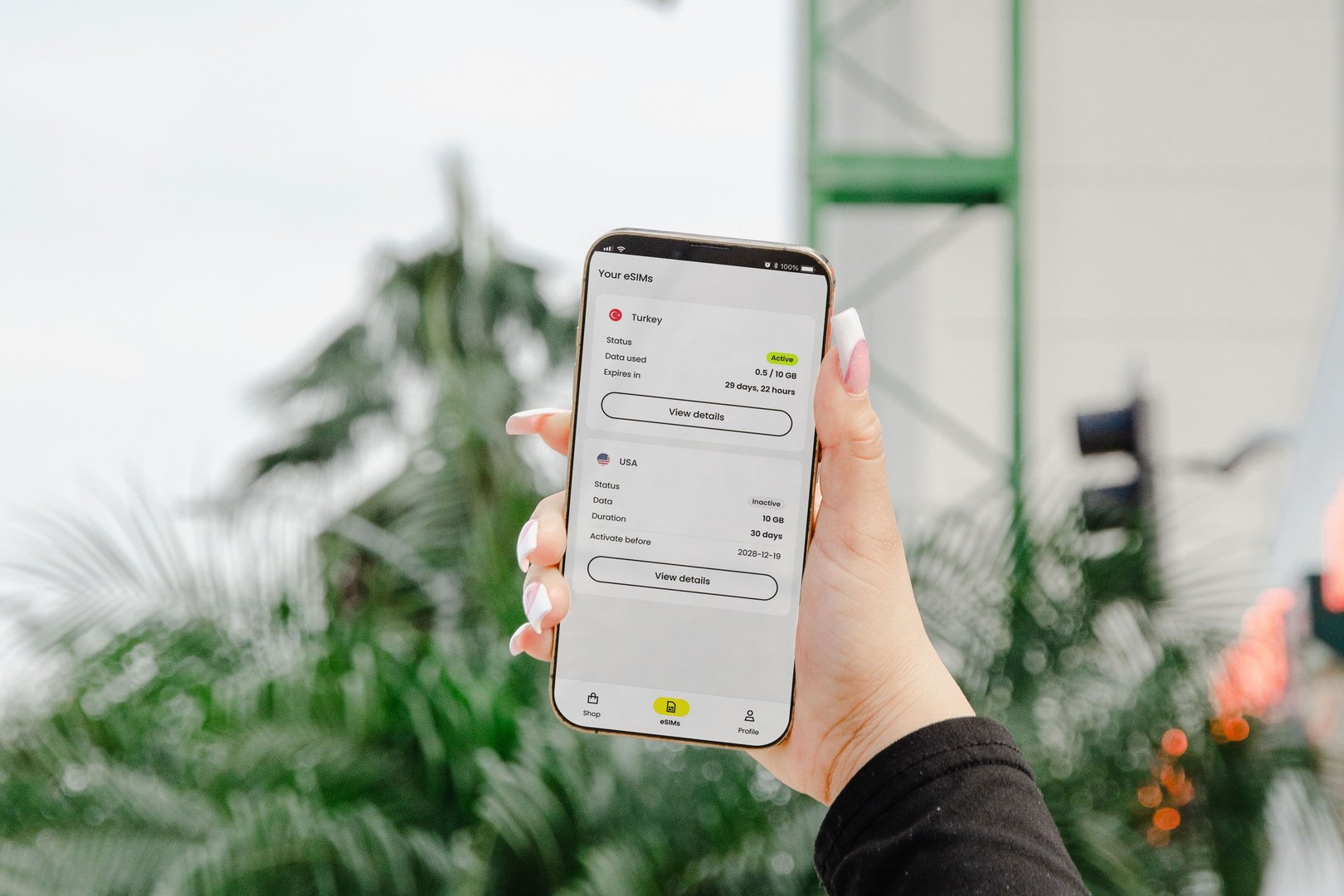
A form on a phone is a small task repeated many times. A field that needs manual text entry can make the shopper switch focus, bring up a keyboard, and type with a thumb. The keyboard often covers the next field, the error message may sit off screen, and the submit button can be hard to reach one-handed. Unexpected friction can make someone abandon a form they intended to finish.
Good mobile form design removes the work the phone can already do and makes the remaining work obvious. This guide covers the decisions that matter most: how many fields to ask for, which input types and autofill hints to use, how to explain fields that look optional, where errors belong, and how to test the whole thing on a real phone before shipping.
Key Takeaways
Ask only for what the task needs right now. Baymard Institute reports a 2024 average of 11.3 checkout form fields and says 17% of users have abandoned due to checkout complexity (Baymard Institute, checkout UX research).
Declare what each field is for, using the right input type and autocomplete tokens, so the phone can fill what it already knows.
Show errors beside the field that caused them, with a suggested fix, and keep what the shopper typed.
Why phone forms lose people
In its 2015 research, Nielsen Norman Group described mobile use as shaped by a small screen, short sessions, a single window visible at one time, and variable connectivity (NN/g, Mobile User Experience: Limitations and Strengths). Each of those limits lands on a form. A short session means the shopper may be on a train or in a queue and wants to finish quickly. One window at a time means an error message at the top of the page is easy to miss. A small screen means fewer fields are visible at once, so a long form forces constant scrolling.
Desktop habits do not carry over. On a laptop, a shopper can tab between fields, see the whole form, and look back at earlier answers without leaving the page. On a phone, moving between fields can require more scrolling, and less context may be visible. Removing unnecessary fields and placing errors clearly can reduce the effort the shopper spends entering information and guessing what to fix.
Ask for fewer fields first
Removing an unnecessary field saves the shopper from filling it in, and it also removes a point where they might stop. Ask only what you need to complete the task right now. Shipping address before payment is a clear need for a physical order. Ask for a phone number only when you can explain why this order needs it. Ask for a company name only when it is relevant to the order. Anything else can move to a later step or disappear.
Baymard Institute's checkout research gives a sense of the scale of this problem. Its checkout-optimization article reports that the average checkout has 11.3 form fields, and that 17% of users have abandoned checkout due to its complexity (Baymard Institute, checkout UX research). The field-count average describes 2024; these figures are not a benchmark for every checkout. Even without the exact numbers, the principle holds: each field is a decision the shopper has to make, and each decision is a chance to leave.
Think of a hotel check-in desk that asks for your passport, home address, favourite colour, and marketing preferences before handing over a key. Some of those questions may be useful later; others may not be needed at all. Ask which details are necessary for check-in. A checkout works the same way. Ask for the key details to complete the order, then ask for the rest after the order is placed, if you ask at all.
Use the right input type and keyboard hint
The input type tells the browser what kind of data to expect. Use type="email" for email addresses and type="tel" for phone numbers. Mobile browsers commonly adapt their keyboards to these types, but the layout varies by device, so do not rely on one specific keyboard appearing.
For values that are mostly digits but are not phone numbers, such as a verification code, a text input with inputmode="numeric" asks for a numeric keyboard without changing the field's validation. The MDN inputmode reference explains these keyboard hints. They change what the shopper sees, not whether the value is valid.
Built-in validation helps with the basics. The MDN form validation guide covers constraints such as required and pattern, and some input types, such as email, also provide format checks. Browser checks are a convenience for the shopper. Validate submitted data on the server as well, because a browser check can be skipped or changed by anyone sending the request.
Declare input purpose so autofill can work
Browsers can fill in saved names, addresses, and payment details. Standard autocomplete tokens help identify what each field means. The autocomplete attribute does that. It names the purpose of the field using standard tokens such as given-name, postal-code, and email. The MDN autocomplete reference lists the standard values.
The W3C's Web Content Accessibility Guidelines treat this as a requirement, not a nice extra. Success criterion 1.3.5, Identify Input Purpose, asks that the purpose of common input fields can be determined by software when the field collects personal information about the user (W3C WAI, Understanding SC 1.3.5). The same tokens that help a screen reader user also help a phone fill the field for a shopper who wants a faster checkout.
Use the documented tokens exactly. A made-up or misspelled token does not provide the intended standard hint, so the browser may have to rely on other signals. Autofill still depends on the browser, its settings, and the data the shopper has saved, so design the form to work when nothing is filled in.
Do not ask for the same thing twice
A shopper who already gave a shipping address should not have to type it again for billing unless they want a different one. Offer a checkbox that copies the answer, and pre-fill the field from the earlier step. This is the same idea behind the WCAG success criterion 3.3.7, Redundant Entry. Its stated intent is to reduce the cognitive effort of multi-step processes and reduce the need to recall information from an earlier step (W3C WAI, Understanding SC 3.3.7).
On a phone this matters more, because switching back to an earlier step can mean losing your place on a small screen. Keep answers saved when the shopper moves forward and backward, and make it obvious how to change one.
Explain fields that look optional
Some fields look optional to the shopper but are required by the system. The phone number is the common case. A courier may need it to arrange delivery, but a shopper who does not know that may assume the field is marketing and leave.
Baymard Institute's survey of 1,026 online shoppers found that 14% said they would never provide their phone number to an online store. Its phone-number field research recommends explaining why a required number is needed. That survey response measures reluctance to share a number, not the abandonment effect of leaving the reason unexplained. The practical advice does not depend on the exact number. A line such as "Used only if the courier needs to call about delivery" costs a few words and answers the question before it turns into doubt.
If the reason is not obvious, say so. If the field is optional, label it as optional. Do not rely on an asterisk alone, because a shopper on a small screen may not notice what it means.
Show errors inline, with a suggested fix
On a small screen, an error message at the top of the form may be off screen when the shopper taps submit. Nielsen Norman Group recommends showing the error inline, as soon as the user finishes that field, with an indicator placed nearby (NN/g, 10 Design Guidelines for Reporting Errors in Forms). Place the message directly under the field that caused it, and keep the value the shopper typed so they do not have to retype it.
The message should say what to do. The WCAG success criterion 3.3.3, Error Suggestion, has the intent of making sure users receive suggestions for fixing an input error when a fix is possible (W3C WAI, Understanding SC 3.3.3). "Enter a five-digit ZIP code" for a US field is a clear example. "Invalid input" is not. Match the wording to the formats your form accepts, and do not reject a valid format from another country because your rule only allows one pattern.
Associate each message with its field so screen readers announce it, using aria-describedby. After a failed submission, move focus to the first invalid field. The W3C WAI guidance on form notifications covers inline errors and accessible feedback in more detail.
Make tap targets big enough to hit
A form on a phone is used with a thumb, often while holding the device in one hand. Small checkboxes, tight radio buttons, and links packed close together cause mistakes. WCAG success criterion 2.5.8, Target Size (Minimum), sets a minimum size of 24 by 24 CSS pixels for pointer targets, with some exceptions. Its stated intent is that targets can be activated easily without hitting an adjacent target by mistake (W3C WAI, Understanding SC 2.5.8).
Give checkboxes and toggles a larger hit area than their visible box, and leave space between controls that sit next to each other. Make the submit button wide enough to reach comfortably without stretching the thumb. These changes can reduce accidental taps and the need to correct them; implementation effort depends on the form.
Keep labels visible
Placeholder text is tempting because it saves space. It disappears as soon as the shopper starts typing, so they lose the cue for what the field needs, and it is hard to read on some screens. Nielsen Norman Group's article Placeholders in Form Fields Are Harmful makes the case against using placeholders in place of labels. The article is from 2014, but the underlying problem, a label that vanishes at the moment the shopper needs it, has not changed.
Use a visible label above or beside each field. Use placeholder text, if at all, for an example format rather than the field's name. A shopper who switches apps, comes back, and sees a blank field with no label has to guess what it wanted.
A quick checklist before you ship
Every field is needed for this step. Anything optional has moved to a later step or been removed.
Each field uses the right input type and, where useful, an
inputmodehint.Autocomplete tokens match the data each field asks for, and the tokens are spelled exactly as documented.
Required fields that look optional have a one-line reason beside them.
Errors appear under the field that caused them, include a fix, and keep what the shopper typed.
Repeated information is pre-filled or copied from an earlier step.
Labels stay visible while the field has focus.
Controls are large enough to tap without hitting a neighbour.
Test with a thumb on a real phone
Desktop previews hide what matters most on mobile: the keyboard covering the next field, the submit button out of reach, and the error that appears somewhere the shopper cannot see. Fill the form on a real phone, one-handed, and check that you can reach each field and its error message while the keyboard is open. Try it with autofill turned on and with it turned off, because both happen in the real world.
Start with the smallest phone your customers use, then try a larger one. Test larger layouts as well; a small-screen check does not establish how the form behaves at other sizes. Also test with a screen reader and with keyboard navigation on a tablet or laptop, since the same form may be used in more than one way.
Read every error message out loud as a shopper would see it. If the message does not tell you what to change, rewrite it before you ship. Then check whether another field can be removed without losing information the task needs.
Linh Nguyen
Graphic Designer
Passionate Graphic Designer | Specializing in Illustration Design | Bringing Captivating Visuals to Life